


 6:01 PM
 PM2 PRINTING

Thermal lamination Films bond two sides or more with heat sensitive film, using heat and pressure alongside the adhesive film will combine the layers. This is a versatile process that can be used on a combination of materials, subsequently leaving a product with a high quality finish.
This is featured post 1 title
Replace these every slider sentences with your featured post descriptions.Go to Blogger edit html and find these sentences.Now replace these with your own descriptions.

This is featured post 2 title
Replace these every slider sentences with your featured post descriptions.Go to Blogger edit html and find these sentences.Now replace these with your own descriptions.

This is featured post 3 title
Replace these every slider sentences with your featured post descriptions.Go to Blogger edit html and find these sentences.Now replace these with your own descriptions.

Friday, April 16, 2021
Thermal Lamination Process
Thermal lamination Films bond two sides or more with heat sensitive film, using heat and pressure alongside the adhesive film will combine the layers. This is a versatile process that can be used on a combination of materials, subsequently leaving a product with a high quality finish.

Tuesday, October 6, 2015
Lamination

Monday, April 7, 2014
IPS vs. LPS Screen
IPS ((In-Plane Switching technology): was originally developed by Hitachi and had been in use from the mind nineties. Earlier to this twisted nematic (TN) technology was used to make panels for monitors. Hitachi introduced the IPS technology for liquid crystal display (LCD) panels. This technology was used to overcome limitations faced by TN matrices, which included slow response, small viewing angles and low quality colour reproduction. The new technology of In-Plane Switching (IPS) introduced arrangement and switching of the molecules of the liquid crystal (LC) layer between the glass substrates in a plane parallel to these glass plates. This technology made a lot improvement in the colours schemes and the resolution in the technology used in twisted nematic (TN) monitors. It provided a better viewing angles and better resistance to touching. Hitachi went on making improvements in this technology making the IPS displays quite popular among the users.
In 2010, Samsung emerged as Hitachi's main competitor by introducing yet another new technology called PLS (Plane-to-Line Switching). The intention of Samsung was quite clear. It wanted to supersede and overtake the conventional IPS technology introduced by Hitachi in the mid nineties. PLS technology introduced by Samsung became the company's wide-viewing angle technology. Samsung has claimed that the PLS technology has further improved the viewing angle. It claims to have increased 10 percent increase in brightness. The company also boasts of 15 per cent decrease in the production costs. There is increase in image quality and in the flexibility of the panel.
Both the IPS and PLS technologies are almost similar, and it is very difficult for the common user to know as to which technology has been used in the display screens. However, the PLS screens are known to be brighter and have better viewing angles. The PLS panels do not change colour on touching them. They do not leave a trail when the user drags his or her finger across the panel. The difference in both the panels is more of a technical and practical value. They are very small and mostly insignificant in the real life situations.
Sunday, March 9, 2014
CONVENTIONAL PRINTING vs. STOCHASTIC PRINTING
Advantages of stochastic printing versus conventional printing:
- Continuous tone photographic reproduction
- Produces a larger CMYK color gamut on press
- Renders greater detail
- Eliminates moire patterns
- Reduces ink consumption by as much as 10% – notice the ‘pooling’ of ink in conventional dot
- Produces smoother gradients
- More consistency in color throughout pressrun
- Faster ink drying
LPI = lines per inch
Stochastic screening (Staccato) refers to FM screens, or frequency modulation. This refers to micro-dots (20 micron, 10 micron) that are FIXED in size and tone values increase by adding more dots. The dots are rendered in a psuedo-random algorithm making them ideal for high definition details in photography and artwork. The micro-dots are rendered in a ‘weave’ to create very smooth tonal transitions.
Micron =1/1,000,000 of a meter
It’s important to note that stochastic printing produces a larger CMYK color gamut than AM screens. This occurs because light reflecting off the paper is filtered more efficiently, resulting in less ‘whiteness’ from the paper reflecting into the eye.
Also, reprints are less likely because of the stability in controlling color on press. FM screens are much less likely to be impacted by ink density variations on press. The ink film on press is much thinner and less likely to be affected. Notice in the enlargement photo above the ‘pooling’ of ink in the conventional halftone dots. This causes the press to use more ink than is necessary.

 |
| FM Frequency AM Frequency |
Stochastic Printing

 Stochastic printing, also called frequency modulation (FM) screening, uses small (10, 20 or 25 Micron), same size dots in a random pattern and varies the density of the dot to create an image that is closer to continuous tone. In the reproduction of an image, we scan a continuous tone original photograph. The scan results in light striking a photosensitive device which issues a number that digitally represents the tonality of the original image. Printing a halftone image on paper requires that this number be passed to a computer, which stores a grid of numbers in a rectangular matrix representing the original image in digital form. To convert the digital matrix of numbers into a printed halftone, the computer sends the grid of numbers to the imagesetter where it is overlaid with a "virtual" halftone screen, a mathematical matrix. The computer captures the value of the numbers and passed it to the halftone generator in the imagesetter. The numbers can range from 0 to 256, which is translated by the halftone generator into a halftone "dot". That dot may exist in any of 256 potential values. The dot is actually drawn by the halftone generator that determines its shape as it grows in size from nonexistence to solid. Varieties of dot shapes exist, from round or elliptical to diamond shaped. In addition, straight-line and star-shaped dots are also possible. Stochastic printing uses a random dot, which takes the mathematical value of the dot and distributes its components inside the halftone cell. Stochastic patterns make possible halftone printing without the use of conventional dots. As a result, problems associated with screening striped or finely detailed fashion sportswear that would result in a moir patterns are eliminated. This also makes it possible to print in more than the conventional four colors of ink. By removing the barriers of screen angle interference from the printing process, stochastic printing has made it possible for the use of more than the basic 4 ink colors. Pantone introduced hexachromatic inks (six process colors). This allows more accurate reproduction of pastel colors.
NOTE: Screening is the process after rasterizing PDF files in the RIP (raster image processor) during prepress. Halftone screening is done through software and creates very small dots, or cells, that are imaged onto a printing plate. The tiny dots create the illusion of continuous tone photographs when printed on press.
Monday, August 1, 2011
Electrographic Plates
Electrographic devices are the ultimate in simplicity. Similar to a laser printer, these devices deposit toner onto a substrate via a charged imaging drum. A special ink-receptive toner enables offset printing, but many devices can also serve as high-resolution laser printers. Manufacturers offering such devices include Printware (St. Paul, MN). The Printware 1440 can image both inexpensive “paper” plates as well as the more durable organic photoconductor (OPC) aluminum plates. In addition to being daylight safe, both options offer the advantage of being totally processless — when the plates emerge from the laser printer, they are ready to hang and run.
Xante's (Mobile, AL) recently introduced Platemaker 4 is its latest device for electrographic CTP, and extends the legacy of its workhorse Platemaker 3.
Xante users can choose between the Myriad 2 (a dry-toner plate with a polyester substrate) and the Myriad 4, which has a paper substrate.
“We made the decision to purchase the Platemaker 4 based on the positive experience we've had with Xante products,” says Floyd Black, president of Personalized Printing (Carrollton, TX). “In four years of operation, there's never been a moment of downtime on our Platemaker 3.”
Personalized Printing doesn't rely exclusively on paper plates. According to Black, it's easy for press operators to switch between aluminum plates and plates output from the Xante platemaker. “Our press operators print the jobs in the order they were received,” says the exec. “All day long, they go from Myriad 2 to metal and back, so they aren't forced to separate the paper-plate jobs from those running on metal plates.”
Computer-to-Plate (CTP)

In the Computer-to-Plate or CTP process the image of the page from a digital files recorded directly from the file to the printing plate instead of creating film and making the plate from the film. Although CTP is a printing process, in order to insure the best possible output it is important that the designer discuss CTP with their printer. The printer's familiarity with the process, their equipment, the type of plates, and file format and preparation all play a role in the success of the computer-to-plate process.
When you eliminate film in favor of bits and bytes, your digital infrastructure must be able to keep up with production. You'll need up-to-date hardware and software and an internal workflow designed to avoid production bottlenecks. Most printers will require one or more digital proofing devices, as well as upgraded desktop publishing workstations, networks, scanning capabilities and archiving procedures.
Until recently, printers implementing low-cost CTP solutions might have opted for dye-sublimation or phase-change proofing devices; today, nearly every new CTP installation features some form of inkjet proofing. While inkjet has won broad acceptance for its strong price/performance balance, remember that not all devices are equally adept at creating contract-quality color proofs and outputting press-sheet-size imposition proofs.
- The direct-to-plate process, known as CTP (computer-to-plate), has eliminated the film output step of plate-making. Printing plates are now made directly from computer files with the use of lasers.
Eliminating the need for film means less cost to you
as well as a reduction in turnaround time.
- In the CTP process, the computer file used to make hi-resolution colour proofs for your job is the same file used to produce the printing plates for the press. This generally eliminates problems such as font or image variations between proof approval and the printed job.
- Another more important benefit of the CTP process is the quality of the “dot” that is achieved on new plate system. The direct-to-plate dots are now sharper and have less “dot-gain” than the traditional film-to-plate process.
- Craigs Platesetter constantly delivers high quality plates for printing presses. The accuracy of the plates enables shorter make-readies and the enhanced dot definition results in superbly sharp print quality.
Tuesday, May 31, 2011
SPOT COLOURS INKS (sheet fed offset inks)
Special shades matched against printed specimen or wet sample.
Matched and Manufactured at our various Mixing & Matching Centres which are equipped with with trained colour matchers and colour matching facilities.
Universally accepted colour system developed by adapting the Pantone Colour Matching System (PMS) - 14 Basic Colour + Transparent White
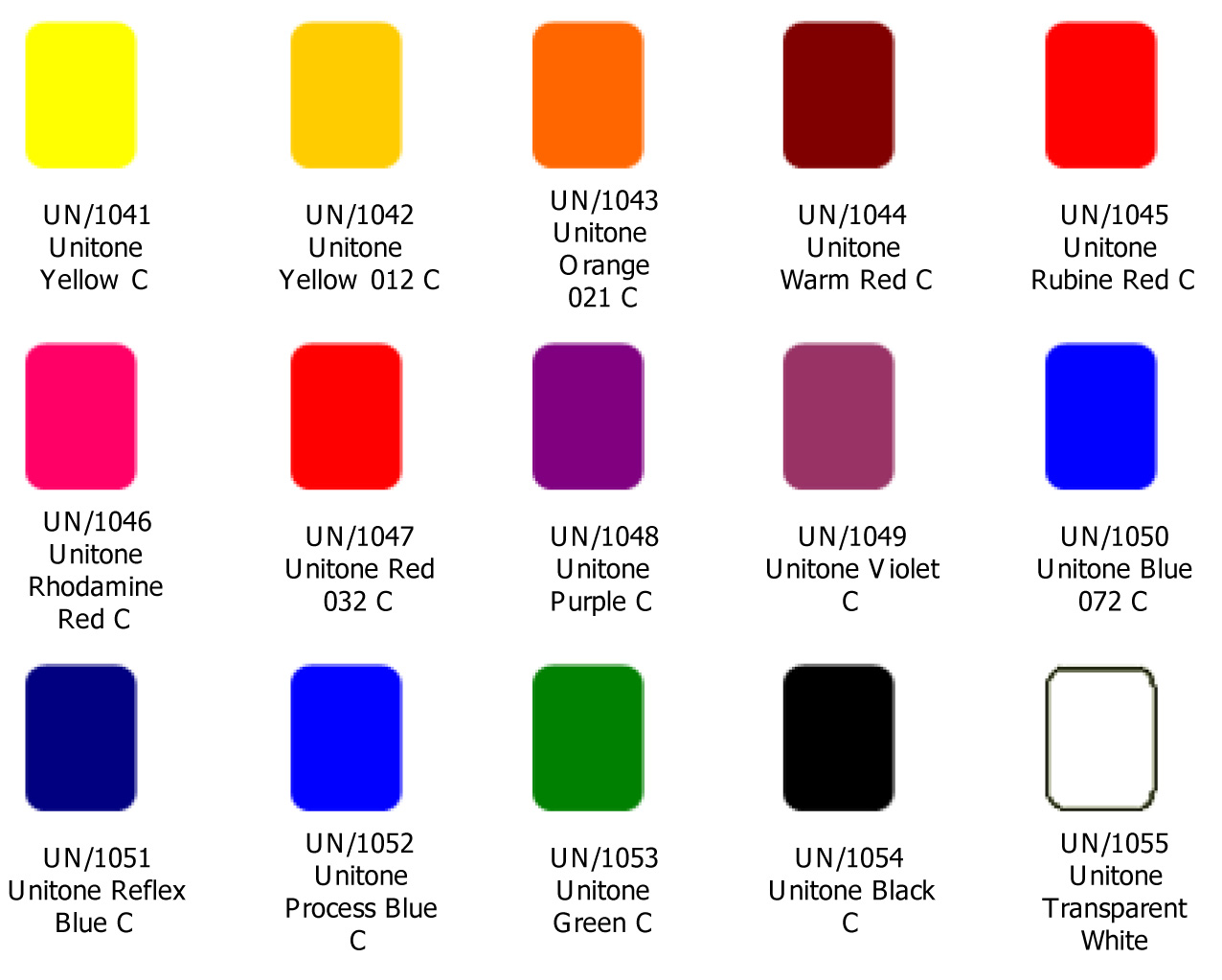
Colorama
Standard range of High Quality Spot/Cut colours.Widely accepted by printers.
Some of the very popular Spot Colours Inks shades are:
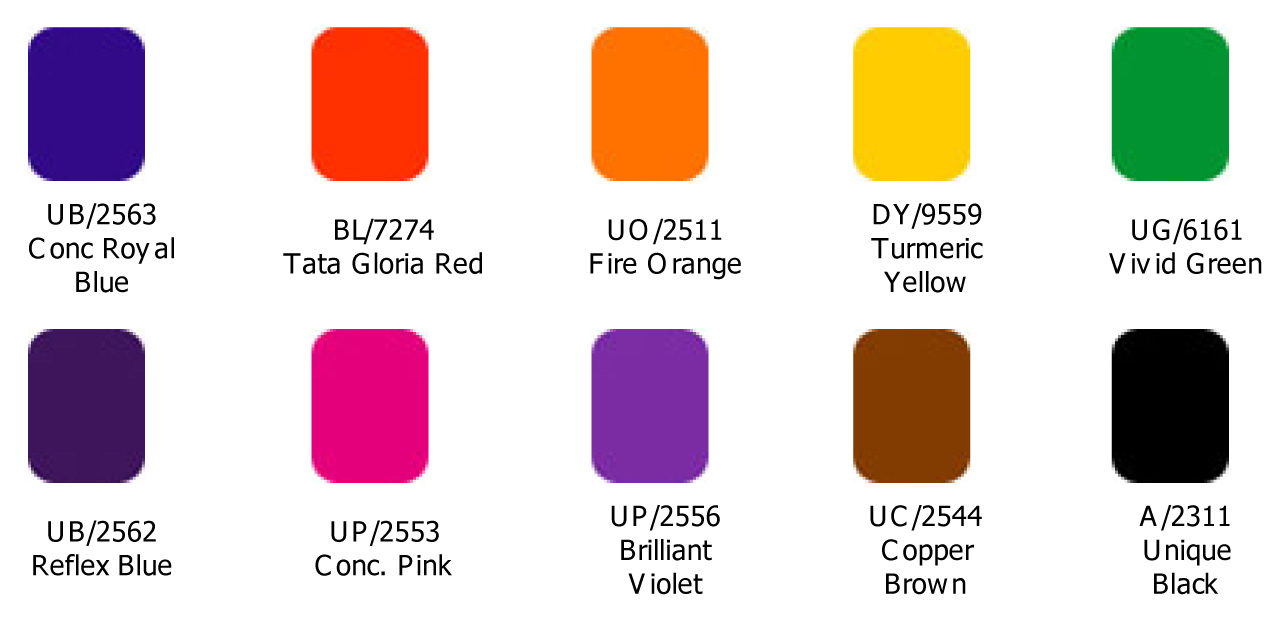
Baby Offset
Standard Range of Economy Spot Colours Inks: Specially formulated for Small/Baby Offset Machines.

NOTE:
The colors shown above are only approximations of the ink colors available. Colors that you see via the World-Wide Web may differ based on a variety of factors - the amount of colors enabled by your display in your monitor's settings, your monitor's resolution, your operating system, the specific Web browser you are using, dithering color palettes, etc.
Color in the print publishing world works very differently. A color is not relative, it is absolute, and always prints in the same hue (although it may appear differently when printed on a variety of different media).
Friday, March 12, 2010
Multi Color Info
Important information for Multi-Unit presses from Pm2:
Does this sound familiar?
At one time your press was brand new and printed with the consistent performance and dot value of a new press . . . over the years you observed problems with inconsistent dot value and experienced increased adjustments to achieve consistent dot value.
How does this happen?
Over time a roller becomes hard, pitted and worn creating hickeys. Eventually the durometer is too high, causing the rubber to shrink unevenly. Consequently, glazing occurs, as a result of excessive leaching of extractable oils. The result is a roller that is about 40 durometer and that will require 10X the amount of mechanical pressure as a 26 durometer to achieve the same stripe setting. With additional MECHANICAL PRESSURE - you get additional UNWANTED heat. Additional ENERGY creates additional HEAT - the law of science.
Consider this . . .
The roller train can only be as good as its weakest link. Consistency in rollers from unit to unit will deliver consistent water and ink balance, as well as, consistent dot value from unit to unit. Unfortunately, the accepted practice when time to change rollers has been to use “exchange” or used cores. Used cores lack concentricity to the detriment of press performance. Regrettably, the objective of replacing rollers in the press has never been to maintain consistency throughout the ink train. Therefore, the range of effectiveness of the individual printing units can go from excellent to very poor. When starting out with all new rollers in each of the units - meaning new core, cover and bearings - you have TOTAL CONCENTRICITY.
Why is consistency in rollers from unit to unit important?
The function of a roller is to transfer and split ink, as well as to work in cooperation with the vibrating roller to fold-blend ink and water together as to maintain water and ink balance. Therefore, the performance of the actual press is in the ink train: Water and ink balance.
How do you obtain and maintain water and ink balance?
Consistent pressure and new rubber.
When you buy a new printing press then look at the press performance 3 to 4 years later, the only thing that has changed is the performance of the rollers and blankets. Rollers and blankets in poor condition lack the ability to provide optimum performance and this significantly affects print quality. The press still picks up and delivers sheets the same. The main difference is the - HEART OF THE PRESS - the printing unit: the INK TRAIN.
What can be done to establish consistency from inking unit to inking unit?
Pacesetter presents: A BETTER WAY TO DRESS YOUR PRESS A plan to RESTORE consistent press performance and maintain:
A program to install NEW ROLLERS in each of the inking units at one time:
What could one year of TROUBLE-FREE printing do for you?
With Pacesetter’s “A Better Way to Dress Your Press” Program YOUR DOWNTIME WILL DIMINISH AND SAVE YOU THOUSANDS OF DOLLARS WITHIN THE NEXT FISCAL YEAR. In a year you could spend $25,000 - $30,000 in down time. When we put all new cores, cover and bearings in ever unit of the press we are taking it back to the day you bought it. With the traditional method of changing rollers - one here - a few there - the downtime adds up. After a couple hours of downtime: for each change.
By changing all inking units at once the press is RESTORED to:
If you want your press to print like the day you bought it “BRAND NEW” try dressing it with ALL NEW CONCENTRIC ROLLERS - new cores, new cover and bearings.
Doesn’t it make sense to install Brand New CONCENTRIC Rollers in each Inking Unit IT’S LIKE BUYING A NEW PRESS.
Does this sound familiar?
At one time your press was brand new and printed with the consistent performance and dot value of a new press . . . over the years you observed problems with inconsistent dot value and experienced increased adjustments to achieve consistent dot value.
How does this happen?
Over time a roller becomes hard, pitted and worn creating hickeys. Eventually the durometer is too high, causing the rubber to shrink unevenly. Consequently, glazing occurs, as a result of excessive leaching of extractable oils. The result is a roller that is about 40 durometer and that will require 10X the amount of mechanical pressure as a 26 durometer to achieve the same stripe setting. With additional MECHANICAL PRESSURE - you get additional UNWANTED heat. Additional ENERGY creates additional HEAT - the law of science.
Consider this . . .
The roller train can only be as good as its weakest link. Consistency in rollers from unit to unit will deliver consistent water and ink balance, as well as, consistent dot value from unit to unit. Unfortunately, the accepted practice when time to change rollers has been to use “exchange” or used cores. Used cores lack concentricity to the detriment of press performance. Regrettably, the objective of replacing rollers in the press has never been to maintain consistency throughout the ink train. Therefore, the range of effectiveness of the individual printing units can go from excellent to very poor. When starting out with all new rollers in each of the units - meaning new core, cover and bearings - you have TOTAL CONCENTRICITY.
Why is consistency in rollers from unit to unit important?
The function of a roller is to transfer and split ink, as well as to work in cooperation with the vibrating roller to fold-blend ink and water together as to maintain water and ink balance. Therefore, the performance of the actual press is in the ink train: Water and ink balance.
How do you obtain and maintain water and ink balance?
Consistent pressure and new rubber.
When you buy a new printing press then look at the press performance 3 to 4 years later, the only thing that has changed is the performance of the rollers and blankets. Rollers and blankets in poor condition lack the ability to provide optimum performance and this significantly affects print quality. The press still picks up and delivers sheets the same. The main difference is the - HEART OF THE PRESS - the printing unit: the INK TRAIN.
What can be done to establish consistency from inking unit to inking unit?
Pacesetter presents: A BETTER WAY TO DRESS YOUR PRESS A plan to RESTORE consistent press performance and maintain:
- Consistent dot value
- Less downtime
- Reduced make-ready time
A program to install NEW ROLLERS in each of the inking units at one time:
- Brand new steel core and rubber covering guaranteed for concentricity
- A quality product supported by the manufacturers guarantee
- Developed exclusively for the printing industry
- The largest inventory of finished rollers in the U.S. to guarantee on time delivery
What could one year of TROUBLE-FREE printing do for you?
With Pacesetter’s “A Better Way to Dress Your Press” Program YOUR DOWNTIME WILL DIMINISH AND SAVE YOU THOUSANDS OF DOLLARS WITHIN THE NEXT FISCAL YEAR. In a year you could spend $25,000 - $30,000 in down time. When we put all new cores, cover and bearings in ever unit of the press we are taking it back to the day you bought it. With the traditional method of changing rollers - one here - a few there - the downtime adds up. After a couple hours of downtime: for each change.
By changing all inking units at once the press is RESTORED to:
- Consistent print quality in ALL the inking units
- Consistent mechanical pressure
- Same heat or temperature
- Consistent water and ink balance
If you want your press to print like the day you bought it “BRAND NEW” try dressing it with ALL NEW CONCENTRIC ROLLERS - new cores, new cover and bearings.
Doesn’t it make sense to install Brand New CONCENTRIC Rollers in each Inking Unit IT’S LIKE BUYING A NEW PRESS.
Saturday, February 13, 2010


Typical Folders

All measurements are in inches.
These are typical folders sizes. Check with your printer to ensure the die lines will work with their
machines.
Monday, August 24, 2009
Screen Frequency / Resolution
Resolution can be confusing, even for people who have been working in the trade for a long time. This is largely due to the fact that, in digital technology, resolution has to be considered in both the input stage (scan) and the output stage (Imagesetter or laser printer). Understanding these two resolutions is vital to the process of getting high-quality images.
Halftone Spots
Halftone spots are the result of turning off and/or on the dots in a halftone cell. This is how an imagesetter creates variant dot sizes.
Screen Frequency (Line Screen)
The number of rows or Lines Per Inch lines of spots in a halftone image within a given distance (lpi). Screen frequency effects the size and sharpness of the halftone spots the imagesetter will render. Choosing the correct screen frequency will depend on such things as the type of paper it will be printing on and the amount of dot gain expected on the press.
Halftone Spots
Halftone spots are the result of turning off and/or on the dots in a halftone cell. This is how an imagesetter creates variant dot sizes.
Screen Frequency (Line Screen)

The number of rows or Lines Per Inch lines of spots in a halftone image within a given distance (lpi). Screen frequency effects the size and sharpness of the halftone spots the imagesetter will render. Choosing the correct screen frequency will depend on such things as the type of paper it will be printing on and the amount of dot gain expected on the press.
Resolution Specifications
| LPI | Imagesetter Resolution |
| 133 LPI | 2400 DPI |
| 150 LPI | 2400 DPI/3000 DPI |
| 175 LPI | 3000 DPI |
Advance Scanning
What makes a good scan? In order to ensure a high quality reproduction, the initial scan must capture as much detail as possible. Check your scan against your original image to ensure that you've maintained as much detail as possible. This can take several rescans. You should also expect to do some tonal manipulation in Photoshop or other image editing program. Tonal manipulation is the key to setting the right contrast, overall tonal range and getting the most detail possible within the limitations presented by the paper and printing choices. See below for the tonal range specifications for specific paper stock types.
Screen Angles
When working with multiple colors that overlap, such as duotones or CMYK, it is necessary to angle the halftone screens. To avoid moire patterns, angle the screen 30 degrees apart.
Tonal Range Specifications
| Stock | Shadow Dot | Highlight Dot |
| Uncoated Stock | 80-87% | 3-5% |
| Matte Stock | 87-92% | 5-7% |
| Gloss/Dull Stock | 92-97% | 7-10% |
Friday, March 6, 2009
How to Fix a Stuck Pixel on an LCD Monitor
If your LCD screen has a stuck or dead pixel (a point on the screen that is always lit or always dark), it is usually due to a transistor malfunction or uneven distribution of liquid in the liquid crystal display (TFT LCD). This can often be fixed.
Steps....
Tips....
 in the liquid crystal display (TFT LCD). This can often be fixed.
Steps....
Software Method
- Try running pixel fixing software (see Sources and Citations). Stuck pixels can often be re-energized by rapidly turning them on and off. If this fails, complete the following steps.
Pressure Method
- Turn off your computer's monitor.
- Get yourself a damp washcloth, so that you don't scratch your screen.
- Take a household pen, pencil, screwdriver, or some other sort of instrument with a focused, but relatively dull, point. A very good tool would be a PDA stylus.
- Fold the washcloth to make sure you don't accidentally puncture it and scratch the screen.
- Apply pressure through the folded washcloth with the instrument to exactly where the stuck pixel is. Try not to put pressure anywhere else, as this may make more stuck pixels.
- While applying pressure, turn on your computer and screen.
- Remove pressure and the stuck pixel should be gone. This works as the liquid in the liquid crystal has not spread into each little pixel. This liquid is used with the backlight on your monitor, allowing different amounts of light through, which creates the different colors.
Tapping Method
- Turn on the computer and LCD screen.
- Display a black image, which will show the stuck pixel very clearly against the background. (It is very important that you are showing a black image and not just a blank signal, as you need the backlighting of the LCD to be illuminating the back of the panel).
- Find a pen with a rounded end. A Sharpie marker with the cap on should be fine for this.
- Use the rounded end of the pen to gently tap where the stuck pixel is - not too hard to start with, just enough to see a quick white glow under the point of contact. If you didn't see a white glow, then you didn't tap hard enough, so use just slightly more pressure this time.
- Start tapping gently. Increase the pressure on the taps gradually for 5-10 taps until the pixel rights itself.
- Display a white image (an empty text document is good for this) to verify that you haven't accidentally caused more damage than you fixed.
Tips....
- If the pressure and tapping don't work directly on the stuck pixel, start moving outward around the stuck pixel. If you see the pixel flicker while doing this then you know where you can focus the pressure and tapping techniques rather than directly on the pixel.
- Many people report success with this technique but these instructions won't work in every case. It may take a few attempts to make sure you are pressing exactly on the stuck pixel.
- These instructions will fix "stuck" pixels, not "dead" ones. Dead pixels appear black while stuck pixels can be one constant color like red, blue or green.
- An alternative, but similar technique involves gently massaging the stuck pixel with a warm damp (not wet) soft cloth.
- Alternative technique to tapping: Using a rounded pencil eraser, push with moderate pressure into screen at stuck pixel.
- If these instructions don't work, you can hopefully get the monitor replaced through your manufacturer. If your monitor falls under the specifications of replacement, get in contact with the manufacturer to set up replacement plans.
Warning....
- Do not attempt to open the monitor as it will void the warranty and the manufacturer will not replace it.
- Make sure you don't get any electrical equipment wet or it may break.
- Some people claim that touching the screen can cause more pixels to become stuck, although this has not been proven.

- LCD Displays are composed of multiple layers. Each layer is separated by ve ry small glass spacers. These spacers and the individual layers are very delicate. Rubbing an LCD panel with a finger or even a cloth can cause the spacers to break and cause further issues beyond the original pixel fault. As such most repair technicians with service certifications are trained not to use the rub or tap methods - use them at your own risk.Sub-Pixel Layers
- Most LCD manufacturer warranties for LCD displays will cover replacement of the panel when the display reaches a certain number of pixel anomalies. These warranties however generally will not cover damage caused by rubbing the screen so use extreme caution and contact the manufacturer before proceeding to see if you qualify for repair or replacement.

What is LCD Monitor?

LCD stands for Liquid Crystal Display, referring to the technology behind these popular flat panel monitors. An LCD monitor is distinguishable from a traditional CRT monitor as the latter has a bulky footprint with a depth of several inches and a weight of 30 - 50 pounds (13 - 23 kilograms) or more, while LCDs are commonly 1 - 3 inches (2.5 - 7.5 cm) thick and weigh less than 10 pounds (4.5 k).
LCD displays were used on laptop computers before the technology improved enough to make the jump to desktop monitors. An LCD monitor consists of five layers: a backlight, a sheet of polarized glass, a "mask" of colored pixels, a layer of liquid crystal solution responsive to a wired grid of x, y coordinates, and a second polarized sheet of glass. By manipulating the orientations of crystals through precise electrical charges of varying degrees and voltages, the crystals act like tiny shutters, opening or closing in response to the stimulus, thereby allowing degrees of light that have passed through specific colored pixels to illuminate the screen, creating a picture.
As LCD technology evolves, different techniques for producing color emerge. Active-matrix or TFT (thin film transistor) technology produces color and images as sharp as any CRT and is generally considered superior to passive-matrix technologies.
Important specifications to consider when shopping for an LCD monitor include contrast ratio, brightness (or "nits"), viewing angle, and response time.
Contrast ratio relates to the display's comparative difference between its brightest white values and its darkest black values. A higher contrast ratio will have truer colors with less "wash out." The standard offering for lower end models is commonly 350:1. Many experts recommend a contrast ratio of 500:1 or better.
An LCD monitor is brighter than a CRT, giving the consumer little reason to hunt for an especially bright model. Brightness is measured in nits, or one candela per square meter. Anywhere from 250 - 300 nits is standard. If the nits are much higher you'll likely end up adjusting the brightness way down.
The viewing angle is an especially important consideration if you plan to have multiple people viewing the LCD monitor at any given time. There is a vertical and a horizontal viewing angle specification, which refers to the degree you can stray from dead center before the picture starts to wash out. High contrast levels usually go hand-in-hand with wider viewing angles. Many recommend a viewing angle of at least 140 degrees horizontal and 120 degrees vertical. The wider the viewing angles, the better.
Response time is measured in milliseconds (ms) and refers to how long it takes pixels to turn from completely white to black and back again. Smaller values represent a faster response time and are more desirable, especially for gaming or viewing video. If the response time is slow, "ghosting" or "trailing" can occur with fast-moving images, as repaints of the screen overlap. A maximum response time should be no more than 25ms for general use, and 17ms is better. Many gamers report no ghosting using an LCD monitor with a response time of 16ms or less.
LCDs use only one-third to one-half the electricity of their CRT counterparts. They are much easier on the eyes, take up 90% less space, and only weigh a few pounds. They also emit far less low-frequency radiation than CRTs. This makes LCDs a great choice for nearly everyone, and ideal for people who work all day in front of the screen. Colors may change hue as one moves to the outer limits of the viewing angle, particularly on displays with narrow viewing angles and low contrast ratios. For this reason graphics professionals that require exacting color consistency regardless of viewing angle generally use CRTs, though LCDs have improved in this regard.
An LCD monitor comes in standard sizes from 15-inches to 21-inches, and larger. The viewing screen is the same size as the rated display, unlike CRT monitors. Therefore a 15-inch LCD will have a 15-inch viewing screen.
A potential weak link of an LCD monitor is the backlight. Many monitors come with a 3-year warranty, but stipulate 1 year for the backlight. Models with 3-year warranties that cover the backlight usually cost a little more but may be worth the extra investment.
Reflective twisted nematic liquid crystal display.

- Polarizing filter film with a vertical axis to polarize light as it enters.
- Glass substrate with ITO electrodes. The shapes of these electrodes will determine the shapes that will appear when the LCD is turned ON. Vertical ridges etched on the surface are smooth.
- Twisted nematic liquid crystal.
- Glass substrate with common electrode film (ITO) with horizontal ridges to line up with the horizontal filter.
- Polarizing filter film with a horizontal axis to block/pass light.
- Reflective surface to send light back to viewer. (In a backlit LCD, this layer is replaced with a light source.)
A liquid crystal display (LCD) is an electro-optical amplitude modulator realized as a thin, flat display device made up of any number of color or monochrome pixels arrayed in front of a light source or reflector. It is often utilized in battery-powered electronic devices because it uses very small amounts of electric power.
A comprehensive classification of the various types and electro-optical modes of LCDs is provided in the article LCD classification.
What is a CRT Monitor?

CRT stands for cathode ray tube, describing the technology inside an analog computer monitor or television set. A CRT monitor or TV is readily recognizable by its bulky form. LCD monitors and plasma television sets, or flat panel displays, use newer digital technologies.
The CRT monitor creates a picture out of many rows or lines of tiny colored dots. These are technically not the same thing as pixels, but the terms are often used interchangeably. The more lines of dots per inch, the higher and clearer the resolution. Therefore 1024 x 768 resolution will be sharper than 800 x 600 resolution because the former uses more lines creating a denser, more detailed picture. Higher resolutions are important for displaying the subtle detail of graphics. For text, resolution isn't as critical.
But how do those colored dots appear on the screen?

Inside a CRT monitor is a picture tube that narrows at the rear into a bottleneck. In the bottleneck is a negative charged filament or cathode enclosed in a vacuum. When electricity is supplied, the filament heats up and a stream or "ray" of electrons pour off the element into the vacuum. The negatively charged electrons are attracted to positively charged anodes which focus the particles into three narrow beams, accelerating them to strike the phosphor-coated screen. Phosphor will glow when exposed to any kind of radiation, absorbing ultraviolet light and emitting visible light of fluorescent color. Phosphors that emit red, green and blue light are used in a color monitor, arranged as "stripes" made up of dots of color. The three beams are used to excite the three colors in combinations needed to create the various hues that form the picture.
To precisely direct the beams, copper steering coils are used to create magnetic fields inside the tube. The fields move the electron beams vertically or horizontally. By applying varying voltages to the steering coils, a beam can be positioned at any point on the screen. Each image is painted on the screen -— and repainted -- several times each second by scanning the electron beams across the screen at incredible rates. This must be done even when the picture being displayed is unchanging, because the phosphor only glows for a very short time.
The refresh rate indicates how many times per second the screen is repainted. Though monitors differ in their capabilities, lower resolutions normally have higher refresh rates because it takes less time to paint a lower resolution. Therefore a setting of 800 x 600 might have a refresh rate of 85Hz, (the screen will be repainted or refresh 85 times per second), while a resolution setting of 1024 x 768 may have a refresh rate of 72Hz. Still higher resolutions usually have refresh rates closer to 60Hz. Anything less than 60Hz is generally considered inadequate, and some people will detect "flicker" even with acceptable refresh rates. Generally speaking, high-end monitors have higher refresh rates overall than lower-end models.Another specification regarding CRT monitors is "dot pitch" which relates to the tightness or sharpness of the picture. A lower dot pitch such as .25 is preferable over a higher dot pitch. In the heydey of the CRT monitor this was an issue because some models were sold with .32 dot pitch, resulting in "fuzzy" text. By the end of the CRT era, virtually all displays had .28 or better and today's CRT monitors can have dot pitches as low as .21.
The CRT monitor comes in 15-inch to 21-inch sizes (38 — 53 cm) and larger, though the actual viewing screen is about 1 inch (2.5 cm) smaller than the rated size. Screens are measured diagonally from corner to corner, including the case.
Tried, true, dependable and economical, CRT technology ruled for decades before its dethroning in the late 1990s - early 2000s. Negatives of the CRT include radiation emission, high power consumption, weight and bulk.
Sunday, October 19, 2008
Graphic design and Pre-press Tips for Photoshop Users
There is some ?must-know? tips for CG people who decide to start doing some pre-press and design for printing.
As beginner you have to know that design for printing has some differences than web design or other screen designs.
Always use CMYK
First of all, printing technology uses CMYK color description and screen design use RGB. CMYK (Cyan Magenta Yellow blacK) is used because of printing technology that uses these 4 colors to make picture on paper. This color model is for Reflective surfaces. RGB (Red Green Blue) is for self-lighted surfaces, like screens and TVs. If you have photos or illustrations in RGB, allways convert them using Photoshop?s Image > Mode menu, because Adobe Photoshop gives best result with minimum changes of colors. CorelDRAW, for instance, gives totaly different colors if you export drawing to RGB or CMYK. In my opinion, if you have to use some design elements from CorelDRAW, export them in RGB and then convert in CMYK using Photoshop.
Black should be only 100%K, not composite from all colors
You have to keep in mind that printing process has minimum 4 passes (to print full color ? in Offset technology), and that alignment of these four passes may not be 100% same. Every pass is one color. So if you make text from 100C 100M 100Y 100K composite, you will have noise at letter?s edges. Photoshop has habit to form black from all composites so pay attention to select only pure black (0C 0M 0Y 100K) when you write text.
Use minimum 300DPI for Offset and 600DPI for Digital printings
Human eye can easly notice granulation of image raster if its resolution is lower than 96 DPI. Common Offset printing plates (machines) support 300DPI, so use this quality and make design in that resolution. Also, some digital printers support more dots per inch so you can make design from 600 to 1200 DPI?s, but it is very hard to notice difference between 600 DPI and higher. In special cases if you make design for buildboard, you can use 30 DPI, because of view distance.
Clean up small composite values
Keep in mind that every colored surface is made from these 4 components mentioned before. If you have on some surface less then 10% of some color, it is better to modify that color component to 0% in order to avoid edge noise. You will make small change on color. Also if you try to print 5% of some composite it is very small chance that something will be printed at all on Offset printing. Example: if you fill background with gray color: 5C 5M 5Y 5K you will probably bet totally white surface, but, if you use 0C 0M 0Y 11K, which gives very similar color on screen, you will have some gray color on background.Simply, printing and screening technologies are different
Make from 3 to 5 mm overedge on every edge that should be trimmed
Printing surface is always bigger than required dimensions. When you do screen design you don?t think about cutting, because it doesn?t exist on screen, but, when you do design for paper you have to keep in mind that someone will have to cut edges of your design. So there is Trimmed dimensions and Not-Trimmed. As designer you are thinking in trimmed dimensions, but when you send file on printing you have to make tolerance in case that swings that cuts paper to fit required dimensions make mistake, and, it always make some mistake. If you don?t make your design bigger you will have white stripes at edges of your catalogue or flyer.

This guidelines shows where paper should be trimmed.
In case of flyer, you have to make this tolerance to all edges, in case of cataloque, only outer edges should have this because, edge that comes to bending line doesn?t have cutting.
Make margins at least 5mm
All elements of design and all texts should be at least 5mm from edge of cut. I tried with 3mm, it was bad looking because on some places distance was smaller because problem of swings. In some cases you can go up to 10mm of margin.That is something that I noticed that beginners in graphic design should know. There is also some pure design tips about contrasts and colors, but I?ll leave it for some other tutorial.
Use TIFF as final file format
I advise you to use TIFF format when you send design to printer company. I had cooperation with many printing companies and printing professionals and everybody agree that TIFF / CMYK is most trusted image format for color-safe exporting and transporting from design workstation to film exposition company. It is safe to use: LZW compression (more compatible) or ZIP compression (less compatible). For final file you can discard layers to reduce file size.
As beginner you have to know that design for printing has some differences than web design or other screen designs.
Always use CMYK
First of all, printing technology uses CMYK color description and screen design use RGB. CMYK (Cyan Magenta Yellow blacK) is used because of printing technology that uses these 4 colors to make picture on paper. This color model is for Reflective surfaces. RGB (Red Green Blue) is for self-lighted surfaces, like screens and TVs. If you have photos or illustrations in RGB, allways convert them using Photoshop?s Image > Mode menu, because Adobe Photoshop gives best result with minimum changes of colors. CorelDRAW, for instance, gives totaly different colors if you export drawing to RGB or CMYK. In my opinion, if you have to use some design elements from CorelDRAW, export them in RGB and then convert in CMYK using Photoshop.
Black should be only 100%K, not composite from all colors
You have to keep in mind that printing process has minimum 4 passes (to print full color ? in Offset technology), and that alignment of these four passes may not be 100% same. Every pass is one color. So if you make text from 100C 100M 100Y 100K composite, you will have noise at letter?s edges. Photoshop has habit to form black from all composites so pay attention to select only pure black (0C 0M 0Y 100K) when you write text.
Use minimum 300DPI for Offset and 600DPI for Digital printings
Human eye can easly notice granulation of image raster if its resolution is lower than 96 DPI. Common Offset printing plates (machines) support 300DPI, so use this quality and make design in that resolution. Also, some digital printers support more dots per inch so you can make design from 600 to 1200 DPI?s, but it is very hard to notice difference between 600 DPI and higher. In special cases if you make design for buildboard, you can use 30 DPI, because of view distance.
Clean up small composite values
Keep in mind that every colored surface is made from these 4 components mentioned before. If you have on some surface less then 10% of some color, it is better to modify that color component to 0% in order to avoid edge noise. You will make small change on color. Also if you try to print 5% of some composite it is very small chance that something will be printed at all on Offset printing. Example: if you fill background with gray color: 5C 5M 5Y 5K you will probably bet totally white surface, but, if you use 0C 0M 0Y 11K, which gives very similar color on screen, you will have some gray color on background.Simply, printing and screening technologies are different
Make from 3 to 5 mm overedge on every edge that should be trimmed
Printing surface is always bigger than required dimensions. When you do screen design you don?t think about cutting, because it doesn?t exist on screen, but, when you do design for paper you have to keep in mind that someone will have to cut edges of your design. So there is Trimmed dimensions and Not-Trimmed. As designer you are thinking in trimmed dimensions, but when you send file on printing you have to make tolerance in case that swings that cuts paper to fit required dimensions make mistake, and, it always make some mistake. If you don?t make your design bigger you will have white stripes at edges of your catalogue or flyer.

This guidelines shows where paper should be trimmed.
In case of flyer, you have to make this tolerance to all edges, in case of cataloque, only outer edges should have this because, edge that comes to bending line doesn?t have cutting.
Make margins at least 5mm
All elements of design and all texts should be at least 5mm from edge of cut. I tried with 3mm, it was bad looking because on some places distance was smaller because problem of swings. In some cases you can go up to 10mm of margin.That is something that I noticed that beginners in graphic design should know. There is also some pure design tips about contrasts and colors, but I?ll leave it for some other tutorial.
Use TIFF as final file format
I advise you to use TIFF format when you send design to printer company. I had cooperation with many printing companies and printing professionals and everybody agree that TIFF / CMYK is most trusted image format for color-safe exporting and transporting from design workstation to film exposition company. It is safe to use: LZW compression (more compatible) or ZIP compression (less compatible). For final file you can discard layers to reduce file size.
Tuesday, May 20, 2008
Additive Color
Color reproduction on the computer monitor (and on television) is achieved by combining Red, Green, and Blue light (RGB) in varying levels to produce a full color image. Red, green, and blue are the primary colors of white light and they cannot be produced by the combination of any other colors. When they are combined full strength, they will produce white light. The combining of red, blue and green colors is known as the "Additive Color Process", because when the colors of light are combined with one another, or added together, the result is an increase in light intensity. If none of the additive primaries are present, the color is perceived as black.
When two primary colors of light are combined, a secondary color is produced. The secondary colors of light are Cyan, Magenta, and Yellow (CMY). The secondary light colors are also the primary colors of the "Subtractive Color Process". The process of combining cyan, magenta and yellow colors is used to reproduce color for printed media
When two primary colors of light are combined, a secondary color is produced. The secondary colors of light are Cyan, Magenta, and Yellow (CMY). The secondary light colors are also the primary colors of the "Subtractive Color Process". The process of combining cyan, magenta and yellow colors is used to reproduce color for printed media

Color Gamut
The color gamut refers to the range of colors that can be viewed, displayed, or printed. The items in the list below are arranged from the greatest to the least in terms of the range of colors that each is able to reproduce:
The color gamut refers to the range of colors that can be viewed, displayed, or printed. The items in the list below are arranged from the greatest to the least in terms of the range of colors that each is able to reproduce:
- Human Eye
- Photographic Film
- Television or Computer Monitor
- Digital
- Printing Equipment
- Offset Printing
Defining Color
The following are the properties that are used to define color:
The following are the properties that are used to define color:
- Hue: is used to describe the name of a color such as red, orange, violet, or blue.
- Value: describes the lightness or darkness of the color. Value is also known as tone, tone value, or lightness.
- Saturation: describes the intensity of the color such as bright or dull. Saturation is also known as intensity or chroma. It is important to remember that a color that has a very intense or bright level of saturation may not necessarily be very light in value just as a very dull color may not necessarily be very dark in tone or value.
Color
Color Conversion
The color gamut of RGB is broader than CMYK and the file size is smaller as well, but CMYK is the better choice for documents that will be used on the Web and for print. CMYK documents work well enough in the RGB environment, but RGB doesn't work as well in the CMYK environment.
For trapping to be effective, it must compensate for less than perfect registration without forming noticeable lines of unrelated color around objects caused by the overprint. Process colors that share a sufficient percentage of common colors do not require trapping, because any registration problems will reveal a color that is similar to each of the adjacent colors. An example of where trapping would not be necessary would be a printed item containing mostly reds and oranges. If the object on such a page were not in perfect register, the result would not be visually distracting because the colors in the gaps and overprinted areas would be similar to any adjacent colors.

The sequence in which the process colors are printed also influences ink trapping. For standard four color printing, the correct sequence to print the process colors are black, cyan, magenta, and finally yellow. Printing in the correct sequence will help ensure the best results. A change in the standard sequence will result in a change in the ink trapping characteristics.
Color Management
Device color spaces refer to the color space of the input device such as a scanner and the color space of the output device such as a printer. Data that is scanned may not display the same colors on a monitor and a printer, so a color management system is necessary. There are many differences between color profiles, so there is no guarantee that colors will be consistent throughout the workflow.
The ICC (International Color Consortium) was developed to set standards for device independent color. ICC profiles are electronic files that describe all of the color characteristics of a device. They can be either generic for a certain device such as a scanner or a monitor or they can be customized with profile generation tools. Color profiles are important because the color spaces of devices such as scanners, monitors, printers, presses, and digital cameras vary greatly.
The color gamut of RGB is broader than CMYK and the file size is smaller as well, but CMYK is the better choice for documents that will be used on the Web and for print. CMYK documents work well enough in the RGB environment, but RGB doesn't work as well in the CMYK environment.

Trapping
Trapping can help compensate for registration problems by slightly expanding one color into another and eliminating the gaps and color shifts between colors. PDF stores the trapping instructions in such a way that the trapped images will look the same on any computer and also when the images are output.
Trapping can help compensate for registration problems by slightly expanding one color into another and eliminating the gaps and color shifts between colors. PDF stores the trapping instructions in such a way that the trapped images will look the same on any computer and also when the images are output.
For trapping to be effective, it must compensate for less than perfect registration without forming noticeable lines of unrelated color around objects caused by the overprint. Process colors that share a sufficient percentage of common colors do not require trapping, because any registration problems will reveal a color that is similar to each of the adjacent colors. An example of where trapping would not be necessary would be a printed item containing mostly reds and oranges. If the object on such a page were not in perfect register, the result would not be visually distracting because the colors in the gaps and overprinted areas would be similar to any adjacent colors.

The sequence in which the process colors are printed also influences ink trapping. For standard four color printing, the correct sequence to print the process colors are black, cyan, magenta, and finally yellow. Printing in the correct sequence will help ensure the best results. A change in the standard sequence will result in a change in the ink trapping characteristics.
Color Management
Device color spaces refer to the color space of the input device such as a scanner and the color space of the output device such as a printer. Data that is scanned may not display the same colors on a monitor and a printer, so a color management system is necessary. There are many differences between color profiles, so there is no guarantee that colors will be consistent throughout the workflow.
The ICC (International Color Consortium) was developed to set standards for device independent color. ICC profiles are electronic files that describe all of the color characteristics of a device. They can be either generic for a certain device such as a scanner or a monitor or they can be customized with profile generation tools. Color profiles are important because the color spaces of devices such as scanners, monitors, printers, presses, and digital cameras vary greatly.
PDF is able to support objects that are specified in different device dependent, device independent, or special color spaces. Acrobat supports Adobe Color Engine (ACE) and ICC Color Management that are in Photoshop and Illustrator. Displaying and printing color documents is more consistent. InDesign does not support this.
Color Bar

Color bars are also referred to as color control bars, color control strips, or proofing bars. Color bars are rows of different colored patches printed in the trim area of the press sheet. They are used by proofers and press operators to control the trapping, ink density, dot gain, and print contrast of the proof or the printed sheet. They usually consist of solid and tint blocks of cyan, magenta, yellow, and black; two and three color solids and tints; and additional elements and patterns such as resolution targets and dot gain scales.

Solid process colors ofBlack, Yellow, Cyan, andMagenta. A color bar are used to measure ink densities.

Solid overprint colors include blue (C&M), green (C&Y), and red (M&Y)

Solid process colors ofBlack, Yellow, Cyan, andMagenta. A color bar are used to measure ink densities.

Solid overprint colors include blue (C&M), green (C&Y), and red (M&Y)

Screen tint patches usually 25%, 50%, and 75% of the process colors. A color bar are used to check for dot gain.

A color patch made up of 50C/30M/30Y. A color cast in the patches will show an imbalance in one of the colors, either from incorrect ink density or from dot gain.
There are several different types of color bars and which one to use depends on the type of printing being used. Prepress and print suppliers purchase original film or the rights to digital files of color bars and other test images. The film and files can then serve as constant reference points throughout the proofing, platemaking, and print processes. They are available from GATF (Graphic Arts Technical Foundation), DuPont, RIT (Rochester Institute of Technology), and others.
Color bars are an essential troubleshooting tool. They are easy to analyze, both visually and with a densitometer, which is an instrument used for measuring the relative density of any part of an image.
Color bars created for computer-to-plate (CTP) systems may require additional features than color bars generated for film.


